What is a NoTails.. Tails Menu And How to Have a Windows Partition on Tails OS anonymizer USB.
 The NoTails.. Tails Menu from GameLink.gr is an open source zenity modular script for the famous Tails OS Live Anonymizer USB that is based on Debian Distribution of Linux. The NoTails.. Tails Menu for Tails OS is free and open source like Debian and without any guarantee. That means that you can read and modify NoTails.. Tails Menu for personal use only and share it based on the restrictions of AGPLv3 License to remain free and open source.
 Along with this comes the YWC downloader which is the independed version of the 5th command and script of NoTails.. Tails Menu to use it alone as a quick and easy to use GUI utility for your files and videos downloads on your Tails OS USB or your Linux Desktops with or without Tor.
Also for the whatever ... (h)istοrίa of the internet ...
The phrase (φράση) NoTails.. Tails Menu is a logopaignio (=> λογοπαίγνιο = play of words) and it is actual: [Not only for Tails a].. Tails Menu since the main purpose for creating this zenity script wasn't to oppose the Tails OS but to improve it, expand it to be useful for the Debian Desktops too with Tor - Tor Browser (the 2 programs is heavily depended the Tails OS) or even without Tor. This menu can be run safely to all Linux Distributions with compatible terminal. The 4 compatible terminals are: kgx - gnome console , gnome terminal, ptyxis and mate-terminal. If your Linux Distro hasn't a compatible it will refuse to run and if your Linux Distro hasn't a compatible package manager it will not harm your Linux.
This project started as NoTails.. Tails Μενού στα Ελληνικά for Greeks because i wanted to give to my fellow Greeks (Ellines) an easy way to use and have always with them the best anonymity tool of our days, because not all modern (μοντέρνος) Greeks have ... amnesia (αμνησία)... and special the Greeks that know (h)istοrίa well, know also that the logocracy (λογοκρισία) of the modern (μοντέρνα) epoch (εποχή) is not an-α (ένα) symptom (σύμπτωμα) or a paradigm (παράδειγμα) an-ός (ενός) parallel (παράλληλου) autonomous (αυτόνομου) cosmos (κόσμου). I just proved you that the English Language (like others ;)) with the 150.000 identical Greek words in the 470.000 total words of English Language is based on Greek Language too except Latin as already have written from special ethnolinguists researchers in the past. An example of my words is the Professor's of CUNY Tamarra M. Green' book: [ The Greek and Latin roots of English ]. Also, a typical (τυπικό) paradigm (παράδειγμα) of this fact is the two speeches of Prof. Xenofon Zolotas in USA in 1957 and 1959 where he used only Greek words that are Identical to English Language. Read them both inside the spoiler.
[Spoiler] The two Speeches of Professor Xenofon Zolotas in USA
First Speech – September 26, 1957
“Kyrie, I eulogize the archons of the Panethnic Numismatic Thesaurus and the Ecumenical Trapeza for the orthodoxy of their axioms, methods and policies, although there is an episode of cacophony of the Trapeza with Hellas. With enthusiasm we dialogue and synagonize at the synods of our didymous Organizations in which polymorphous economic ideas and dogmas are analyzed and synthesized. Our critical problems such as the numismatic plethora generate some agony and melancholy. This phenomenon is characteristic of our epoch. But, to my thesis, we have the dynamism to program therapeutic practices as a prophylaxis from chaos and catastrophe. In parallel, a panethnic unhypocritical economic synergy and harmonization in a democratic climate is basic. I apologize for my eccentric monologue. I emphasize my eucharistia to you Kyrie, to the eugenic and generous American Ethnos and to the organizers and protagonists of this Amphictyony and the gastronomic symposia.” Prof. Xenofon Zolotas
Second Speech – October 2, 1959
“ Kyrie, It is Zeus’ anathema on our epoch for the dynamism of our economies and the heresy of our economic methods and policies that we should agonise between the Scylla of numismatic plethora and the Charybdis of economic anaemia. It is not my idiosyncrasy to be ironic or sarcastic but my diagnosis would be that politicians are rather cryptoplethorists. Although they emphatically stigmatize numismatic plethora, energize it through their tactics and practices. Our policies have to be based more on economic and less on political criteria. Our gnomon has to be a metron between political, strategic and philanthropic scopes. Political magic has always been antieconomic. In an epoch characterised by monopolies, oligopolies, monopsonies, monopolistic antagonism and polymorphous anelasticities, our policies have to be more orthological. But this should not be metamorphosed into plethorophobia which is endemic among academic economists. Numismatic symmetry should not antagonize economic acme. A greater harmonization between the practices of the economic and numismatic archons is basic. Parallel to this, we have to synchronize and harmonize more and more our economic and numismatic policies panethnically. These scopes are more practical now, when the prognostics of the political and economic barometer are halcyonic. The history of our didymous organisations in this sphere has been didactic and their gnostic practices will always be a tonic to the polyonymous and idiomorphous ethnical economics. The genesis of the programmed organisations will dynamize these policies. I sympathise, therefore, with the apostles and the hierarchy of our organisations in their zeal to programme orthodox economic and numismatic policies, although I have some logomachy with them. I apologize for having tyrannized you with my hellenic phraseology. In my epilogue, I emphasize my eulogy to the philoxenous autochthons of this cosmopolitan metropolis and my encomium to you, Kyrie, and the stenographers.” Prof. Xenofon Zolotas
Also, the known history of humanity teaches us that the hiding of our private internet moments is many times a survival action and what is the best tool to achieve this goal other than Tails OS on a usb stick that we can always have with us ? A software tool for usb sticks that exists today and after the merge with Tor Project that happened during 2025 will remain the best tool for the future too!
This moment is the right one to express my disagreement with the majority of people that are using the term Dark Web for Tor. The Tor network and the Tails OS is the Crypto Web and not the Dark Web as many call it because it is based on Cryptography (Κρυπτογραφία) since it is a VPN with three (3) repeaters - nodes (guard node, relay node, exit node) and started as a Military Project before going open source and public as it is now.
Is the real Dark Web the normal internet aka Clearnet where everyone can see and learn details about others and do any Dark action can the human mind may imagine and not the Tor that offers the proper anonymity that anyone may need to sustain its personal Integrity and Freedom?
I don't know ... Rhetorical Question anymore ...
Until this Question answered i will continue call Tor as Crypto Web and not Dark Web.
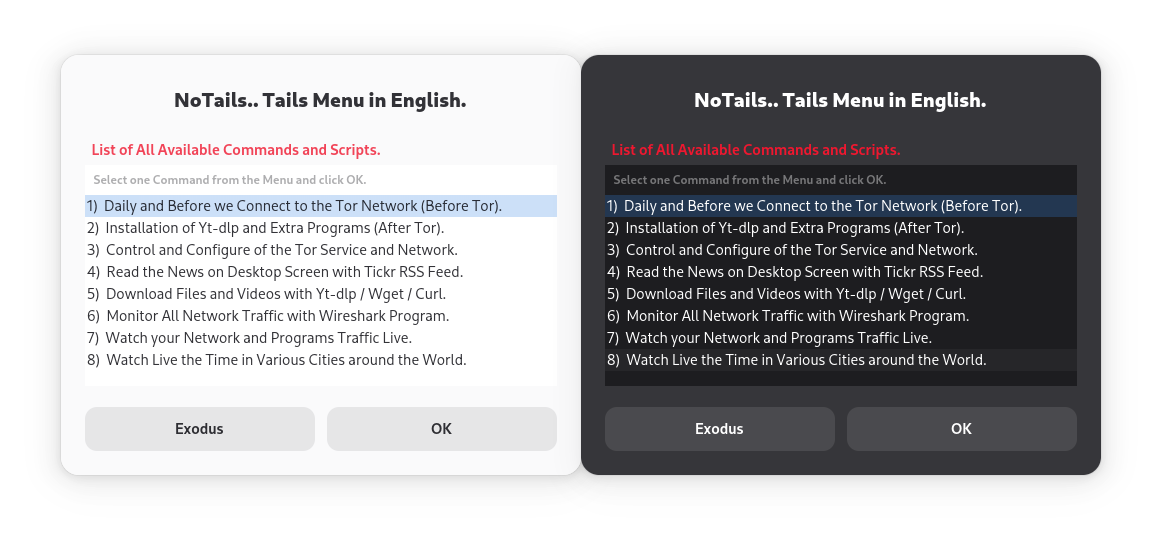
The initial and upper image shows how it is the NoTails.. Tails Menu in English in white and dark background when you run it on the current (the seventh (7th)) version of Tails OS and the next and below image shows how was the NoTails.. Tails Menu in Greeks (i translated the project during 2026) in white and dark background again when i started writing it for the previous (the sixth (6th)) version of Tails OS during the 2025. I kept NoTails.. Tails Menu compatible with both Tails OS versions for the users that need to use it for special programs that may not compatible with the 7th version of Tails OS yet and i replaced the Torrent but i didn't removed it from the folder. The reasons that i removed the Torrent script from the menu but not from the folder are these. The Torrent is a heavy targeted program for DMCA violators and this fact puts the anonymity that Tails OS offers at risk but there are legal files for download like the Linux distribution torrents and sometimes there is a need to use the Torrent script as an individual script to download them.
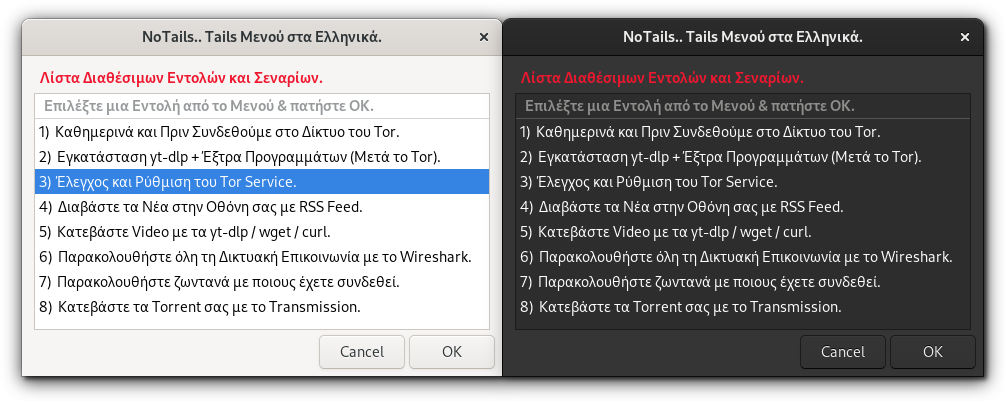
The development of NoTails.. Tails Menu started from the sixth (6th) version of Tails OS during 2025 but the seventh (7) version arrived the same year and i had to deal with a lot of changes. The most important change that affected the development and release time too was the change of the terminal. In version 7 of Tails OS the GNOME Terminal (gnome-terminal command) removed as Terminal and replaced with GNOME Console (kgx command).
Although the possibility to install the gnome-terminal remained, the by default removal of this terminal from Tails OS created a lot of problems to the development of The NoTails.. Tails Menu. I tried to change the script by keeping the compatibility with gnome-terminal, and the moment i am writing the article the only situation that gnome-terminal is necessary for the Tails OS 7 version is the 3rd command of the 3rd script (the editing of Torrc files).
The good news is that the gnome-terminal's developers will not stop its development and there will be always available for installation without creating any problem to the new default terminal (the GNOME Console (kgx command)) and in my opinion this is happening because the new terminal has some new nice features like the terminal preview or it is more secure terminal but there are still incompatibilities like the not correct handling or control of the external programs without problems in Wayland.
I tried the NoTails.. Tails Menu to be compatible with the Tails OS 6 version because the time now i am writing this guide is too short, only six months from Tails OS 7 release day and i already noticed there are still incompatibilities with the newer version on some programs like it was expected to happen because it wasn't changed only the terminal on Tails OS version 7 but the name of many programs on Debian Trixie that is based the Tails 7 OS. Even a name change of a program is more than enough for the apt package manager to refuse, not find and finally not install a program. Something that is proven if someone tries to install the libcanbera-module with its Bookworm's name and does not change it to libcanberra-gtk3-module that is its Trixie's name.
I would like to write here that if you are searching for a live example with zenity scripts as a guide for your scripts the NoTails.. Tails Menu is the perfect example because i used all of them with only one exception, the calendar zenity script. This fact makes the perfect guide to start your own zenity experience because the NoTails.. Tails Menu works on Debian Linux Desktops too with or without Tor. Also all the scripts inside the NoTails..Tails-Files folder can also run by their own as individual scripts and since the 5th submenu's role is to download files and videos and it doesn't need a sudo password i created a special desktop file for it to use it as a minimal zenity downloader program for your Debian Linux Desktops with only one requirement. The only requirement that needs to exist to run both the NoTails.. Tails Menu and the YWC downloader in Debian Desktops other than be both executables is that the main script and the NoTails..Tails-Files folder should exist inside a folder with name Persistent inside the /home folder of the Linux user you want to use them, exactly as it is on Tails OS!
Only these "few" for the (h)istory (ιστορία) as a ... mega prolog (μεγάλος πρόλογος) ... let's pass on how to download, install and use the NoTails.. Tails Menu script!
p.s. Even OK it is obvious that it didn't come from the funny stories that some Frank Greco (nice name to reveal the truth :p) were telling but from ... Όλα Καλά (All Good in Greek Language)!!!
Table of Contents
- What is the NoTails.. Tails Menu
- How to download the NoTails.. Tails Menu
- Installation and Usage of NoTails.. Tails Menu
- Creation of NoTails.. Tails Menu application entry on Tails OS and on Linux
- How to install Tails OS and create a shared Partition for Windows, Linux, Mac, ios and Android
- How to connect with the safest way to Tor Network and how to manage Tor with NoTails.. Tails Menu
- How to Contribute or Support the NoTails.. Tails Menu project
- License to use
What is the NoTails.. Tails Menu
The gamelink.gr is offering you for free "AS IS" the NoTails.. Tails Menu that is a automated and very useful bash - zenity menu script for the well known Tails OS Live USB Stick Anonymizer OS, an Operating System which is loaded from the usb stick and it executes a dozen of other bash scripts that are inside the NoTails..Tails-Files folder.
With NoTails.. Tails Menu zenity script, you saw it how it looks in white and dark background on previous images, you can quickly bring Tails OS desktop to the appearance and status you want but also you can change it as many times you want with the first script. The first script has also the ability to save your preference settings so you don't have to ask every time. Apart of the appearance of Tails OS the first script manages many settings of the desktop and the PC you run it like Wifi and the UFW Firewall that i have included as an additional protection to existent Ferm. If you have already install the UFW, the first script also adjusts the Tor settings according to your preferred function role for the Tails OS usb, i.e. as client or as server and finally opens the Wiki of Tor with Tor Browser, the system monitor and a terminal screen where you can monitor your network connections every second.
Of course the first script is not the only one and i will briefly mention what are doing all the scripts that are initial available to you...
- the 1st script brings fast the Tails OS to your measurement and in full force.
- the 2nd script installs extra programs, update all the existent and shows you the security updates via the upgrade function of apt (on Linux Desktops it installs them if you want).
- the 3rd script controls and manages the Tor Service.
- the 4th script opens Tickr to read your RSS Feeds on the desktop.
- the 5th script is a mini downloaded manager for files and video with yt-dlp, wget amd curl.
- the 6th script opens the wireshark the best packet analyzer.
- the 7th script opens a multitude of tabs with useful screens with which you can monitor the Tor network and the apps they are connect to it (also the tcpdump that is like the wireshark for terminals).
- And the 8th script shows you the time in various cities in the world every 10 seconds that give us the ability to add any city time you want, easy!
But the most important feature of NoTails.. Tails Menu is that it speaks your ... Language and makes the Tails OS to speak your language too after you add it in the 1st script ... and any language version of the program you want with the 2nd script. For this You just have to add the ibus or the xkb of the language you want to the first script and the symbol of the language for the program you want to install inside the second script to have a full working Tails OS in your language!
Overall the programs that the second script installs are these : yt-dlp, UFW, support for your language in programs, your language versions of thunderbird and libreoffice, unzip, htop, gparted, doublecmd-gtk, transmission, mpv, tickr, dconf-editor and wireshark. All these will be installed on Tails and on Debian Like Linux only because the rest Linux versions have different package managers and i don't want to mess anything on the other distriutions of Linux... Also on many of them there are not some programs like the Tickr that has instructions on their site only for compilation on debian and on fedora ! But all Linux version can download with the 2nd script the yt-dlp like it is doing the 5th script too. Τhe autonomus YWC Downloader doesn't ask to download yt-dlp by default and if it find it on VIDEOS folder inside the Persistent it copies it to the user's home position that OS searchs to execute it ;-)
List of the compatible Linux OSes and Terminals with the NoTails.. Tails Menu and the YWC Downloader
Before start using the NoTails.. Tails Menu on a Linux Computer you should know that not all Linux Terminals and Linux Distributions are compatible by default. The main reason for that is that i couldn't succed to adapt all the first and main script execution commands of the other scripts to the rest terminals.
So the compatible Terminals with the NoTails.. Tails Menu are:
1. kgx             (Gnome Console default since Tails 7)
2. gnome-terminal  (Gnome Desktops default)
3. ptyxis          (Ubuntu default)
4. mate-terminal   (MATE Desktop default)
and the lack of any of these 3 terminals inside your Computer is the reason for the denial execution message if the main script is executable, inside a folder with name Persistent inside the /home of user.
On the other hand all Linux Distributions are wannabe compatible but you have always in mind that this project started for Tails OS and not for Linux. And for this reason if the main NoTails.. Tails Menu windows is not sized as you want you can easily adjust it to your desires inside the terminal checks of the 1st menu script.
Although this program is not created for Linux it will not deny the execution, i have add a remind zenity message to warn you that i haven't did any test for your Linux OS. You can lift this message by adding an elif control code line on detect_Tails_OS_Linux_Desktop function inside the NT_Functions.sh library. i have done tests to all major Linux distros (Debian like, Red Hat like, Arch like, Suse like kai Alpine like Linux ) and no problem created by the execution of any of the initial scripts. You can add this exception after you are sure that no problem may appear by using the command -v, the $ID & the $VERSION_ID of os_release or lsb_release files inside /etc of your OS.
YWC Downloader on the other hand that you can find it inside the Other subcategory of the Main Linux Menu of your Desktop when you execute the create_linux_entries.sh script has no terminal or Linux or even sudo restriction for its execution and you can use it with or without tor (by using the parameter: notor) as a daily... GUI download utility for your Linux Desktop !!!
How to download the NoTails.. Tails Menu
First of all you should know that the NoTails.. Tails Menu consists from one main file (script) the NoTails-Tails-Menu.sh file which should be executable to run and one folder with name NoTails..Tails-Files which contains all the rest necessary files (scripts) that the list of commands of the main script run. The main folder also has the rest necessary files, e.x. licences, desktop files and folders, e.x. the folder with the .Dotfiles files and the folders for the settings and the images.
Also the correct path that the main script and the folder should be in Tails OS and in any Debian based Linux is the Persistent folder in Tails OS and in a folder with the same name (Persistent) on a Debian based Linux inside the /home folder of the user who wants to use it.
If you change its location, it won't ... start !!!
You can download the NoTails.. Tails menu from two sources. The first source is this page and the download link and its hash is this page and the link is this.
SHA256: db2c0ab4c0a7121112af23034c44f79afd0b12f23a286741ad710240d89e9fa7
The other sources are identical copy of the above files and the first uploaded to my profile on github, a mirror of it on my gitlab profile and an exacty clone on my bitbucket profile where you will find them for download even this page is not available anymore.
NoTails.. Tails Menu on GITHUB NoTails.. Tails Menu on GITLAB NoTails.. Tails Menu στο BITBUCKET
Installation and Usage of NoTails.. Tails Menu
The easiest way to use NoTails.. Tails Menu after you download the zip file, and after checking that it has not been tampered is to decompress the files of the zip inside the Persistent folder of Tails OS and finally run it with right click of the mouse on NoTails-Tails-Menu.sh file and choose Run as a Program (an option that is available only when a file is executable).
If everything is correct it will appear a window with a brief of License and some info for the program that you have to tick the box and press OK to continue. If you press OK it will appear the zenity window of login you will watch every time you start the NoTails.. Tails Menu and it will be exactly the next in white or black depending on the occasion (if you run it for second time on Tails OS usb stick or to PC).
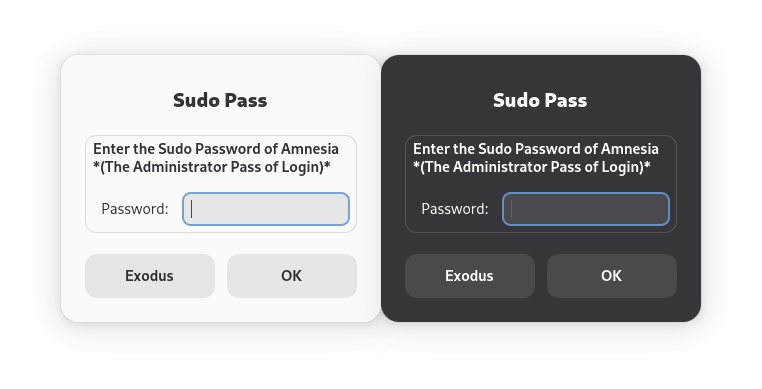
But this way is not the appropriate one and the correct way to run the NoTails.. Tails Menu because it opens an extra and unnecessary terminal in the background, it could bug the login because the terminal session is not automated reloaded and it is annoying due to the new behavior of the new terminal which doesn't auto-close the terminal window when any script ends (something that changes by changing the disable-command-line key of org.gnome.desktop.lockdown with dconf-editor), although it has a very nice feature with that is the live tabs terminal preview by pressing the [ shift + ctrl + o ] combination of keys.
All these problems can be easily solved, if you copy and past the Hidden files from the DotFiles-Files folder that also exist inside the zip files to the folder ... Dotfiles (you turn it on with Persistent Storage app) and after a reboot of the Tails OS you will see 2 + 2 new programs inside a new category with the name Other in Apps menu as seen in the next image (for the Double Commander to appear you should run the 2nd command of NoTails.. Tails Menu).
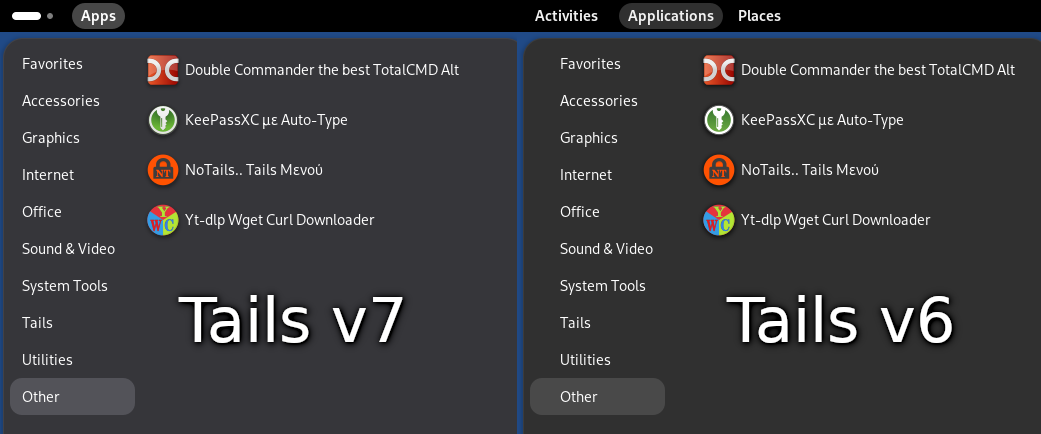
Instructions of how to create easy the desktop sub-menu entries like these on the image you will find the section Creation of NoTails.. Tails Menu desktop files of Tails OS.
I created the NoTails-Tails-Menu.sh script to be as easy to be for reading and changes and for these reasons all the scripts inside the NoTails-Tails-Files folder can be run as individual scripts with right click. If you are a Linux user yourself (of any Linux distro, not only a Debian's Linux user), you can use the standalone version of the 5th script as a mini download manager in your Linux with Tor or without Tor as long as it's inside a folder on /home of the user with name Persistent, exactly as it is on Tails. Maybe NoTails.. Tails menu seems simple at a glance because i am a big fan of K.I.S.S. in programs but it already has all the desired capabilities someone may need from such a tool for Tails OS to bring the Tails Desktop in desirable look and functionality fast by opening the Tor Browser with the 1st script that is the 1st sub-menu of the list of the main script. Also the License and the design of the script gives you the ability to add your own scripts extremely fast and easy too by adding only one line of code in case and one line with the command of call of your own script inside the main script that is the NoTails-Tails-Menu.sh.
The Sudo Password is used only once. The solution to a big problem of the Sudo in the shells and in zenity.
However, what helps most of all by running the NoTails-Tails-Menu.sh zenity script is that you don't have to enter the Administrator password (the amnesia's sudo) every time, but only if you close and reopen it, something that i am sure the heavy Tails OS users will appreciate. The same also happens to Linux where you can use the sudo zenity login for your own scripts!
Also, regarding security your sudo password is not displayed in the terminal or in any way unless you enable terminal debugging with set -x and also i must say that the login function also checks for failed attempts to enter administrator password. This zenity login procedure with sudo is actually two functions that you can find them inside the NT_Functions.sh ( a script that acts as library ) and they are ready to use them in your own sudo password scenarios on Linux Desktops.
Very attention to the integration of scripts from now on and from where you download this script because ...
if the script you integrated starts downloading files from an unauthorized server or without your acknowledge and run any program this program will run with root permissions (sudo). You should always remember that any script or program run by the NoTails.. Tails Menu or any fork of it that it has full root rights on your Computer and you have to be extra cautious about any script or program launched by NoTails.. Menu zenity script. Generally speaking you should avoid the scripts that run directly from servers with these 2 type of commands wget -O http://raw-source-file-link-sh | bash ή bash <(curl -s http://raw-source-file-link-sh ). If you don't know or trust the owner or you haven't just read the code of these scripts then don't integrate them. This type of script execution is unfortunately very familiar lately. Download the scripts first, read them and learn what they are doing and what commands they are executing and after you know what they are doing embed them on NoTails.. Tails Menu or any menu you create with sudo rights like i did. Something that i want you do for all of the scripts of NoTails.. Tails Menu too ! If you spend 1 minute to read and learn what the script is doing maybe it will save you from many hours or even days of extra work or an irreparable damage if it is on ebanking, cryptos etc !
Creation of NoTails.. Tails Menu application entry on Tails OS and on Linux
The procedure of the creation of the NoTails.. Tails menu application entry inside Apps > Other on Tails OS is very easy since it needs only a copy + paste of the hidden files that are inside the DotFiles-Files folder of the zip file to the Dotfiles of Tails and after a reboot of Tails OS to appear inside the sub-menu category of Apps with name Other as shown in the image in the previous paragraph.
If you want to read a more detailed guide about the creation of NoTails.. Tails menu application entry click on [Spoiler] to open it.
[Spoiler] Detailed procedure of the NoTails.. Tails Menu application entry on Tails OS
After download we unzip and paste the files of NoTails.. Tails menu inside the Persistent folder of Tails we will see the main script (NoTails-Tails-Menu.sh) and a folder with name NoTails..Tails-Files. This folder has all the necessary files of NoTails.. Tails Menu and three folders. The first folder with name images has all the necessary pictures of the program, the second folder with name settings will keep all our preferences from the first script / first command of the main window and the third folder with name DotFiles-Files has all the hidden files we should copy and paste inside the Dotfiles folder of Tails that appears as Dotfiles under the Persistent link of Files program to help Tails "remembers" our preferences for all the programs we are using in Tails OS.
WARNING Here i must warn you that if you already have enabled the Dotfiles folder from Persistent Storage to not override your settings if you are already using the rest programs that exist on the zip's DotFiles-Files folder (GIMP, transmission, doublecmd , tickr) to not override your preferences on these programs, which is not going to happen if it is the first time you activate the Dotfiles from Persistent Storage or you never used these four programs in the past with enabled Persistent Storage."[Enabled Dotfiles inside the Persistent Storage]
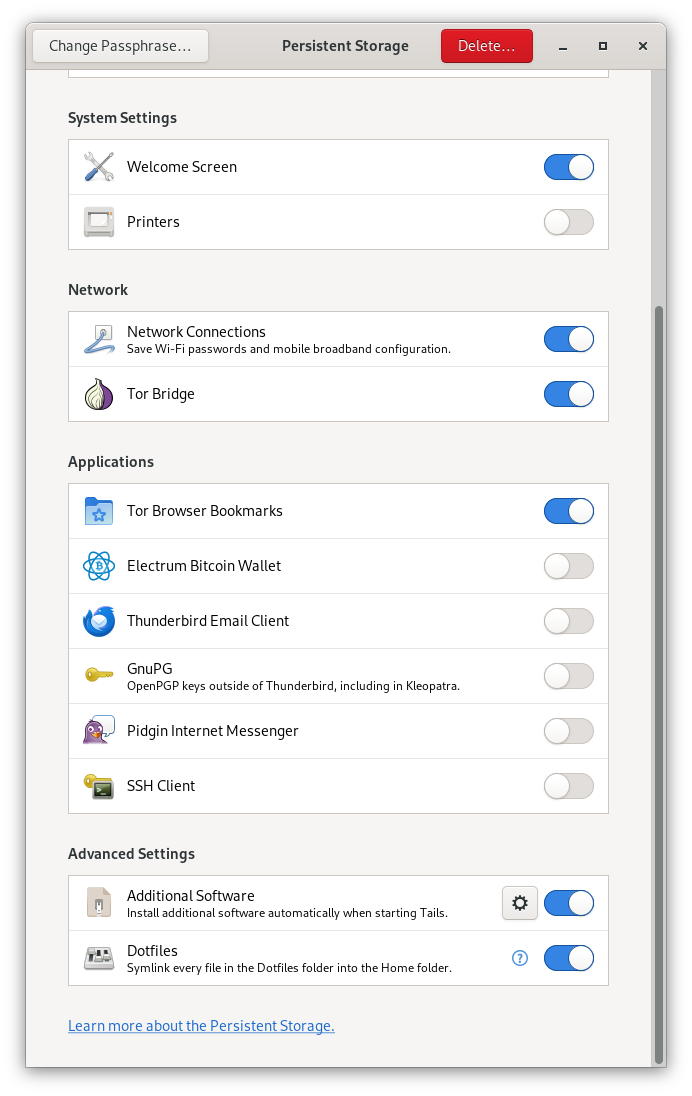
Also all the folders inside the DotFiles-Files folder start with a dot. This is happening because with dot at the beginning of the name of a file or folder the files and folders become hidden in Linux and we can reveal them with files program by clicking the 3 horizontal dashes and choosing the [ show hidden files ] command or within the terminal with the [ ls -la ] command or even easier by pressing [ Ctrl + H ] inside any folder, in DotFiles-Files folder in our case when we can't see them.
So, to see the NoTails.. Tails Menu application entry to appear the procedure to follow is this.
- reveal the hidden folders inside the DotFiles-Files
- copy all the folders from DotFiles-Files
- paste them inside the Persistent (enable it with Persistent Storage)
- Restart Tails OS
After restart you will find the new entries on Tails OS under the : Apps > Other (Applications > Other on Tails 6). The new entries will appear (as you see them in the image below) after you copy and paste the hidden folders of DotFiles-Files inside the Dotfiles, the NoTails-Tails-Menu.sh is executable and you have restart the Tails OS (refresh of Desktop session on Linux)... Not before!!!
![How it looks the NoTails.. Tails Menu on Tails OS]
The NoTails.. Tails Menu entry executes the NoTails-Tails-Menu.sh without a terminal in the background, the Double Commander executes the doublecmd-gtk that even a gtk 2 program remains the best alternative Total Commander alternative for Linux, the YWC downloader executes the standalone yt-dlp wget curl downloader scripts that it doesn't need a password and it is the same as the 5th sub-menu of NoTails.. Tails Menu and the last runs the installed KeePassXC with activated the auto-type but the time i am writing is not functional in Wayland and it is still under investigation from developers and o left it as entry to be ready to run when there is a fix.
INFO The Double Commander (doublecmd-gtk) application entry will appear and work after you install it with the 2nd script and after you connect to Tor Network for at least one time.
How to create the NoTails.. Tails Menu entries for Linux Desktop?
To create the NoTails.. Tails Menu entries in your Linux Desktop fast and easy i created a script (you can find it inside the NoTails-Tails-Files folder) with name create_linux_entries.sh. If you run it, it will create the correct NoTails.. Tails Menu entries inside the Other of Main menu. For this reason it has to be executable like the main script and the 5th standalone script for yt-dlp, wget and curl!
After you run the create_linux_entries.sh and after a Desktop session refresh you will find these 2 new Apps inside the Other sub-menu of the Applications in Debian Linux.
Common problems that NoTails.. Tails Menu has on Linux Desktops.
Most of the problems a Linux User will face with NoTails.. Tails Menu are coming from the NO secure practices in a PC. Do not use NoTails.. Tails Menu on a passwordless sudo Linux user because it is not safe and it bugs a lot and from the start of the execution ! But in the other hand the lack of basic programs like ss or the minimalist implementation like the date without all the formats (no coreutils) or on a busybox environment it doesn't bug the execution of the menu even it doesn't give the expected results. The correction of these problems is in your hands. So, for passwordless sudo you just have to change sudo to ask for the password of the sudo user and for the luck of programs or the luck of extra libraries you should install them.
Because I'm on my own wanting to find automated solutions to these issues, although i want to, in practice it is impossible. If you want to fix them the License allows the correction on your own forked project as long as it remains open and free !
How to install Tails OS and create a shared Partition for Windows, Mac and Android
Even you don't want to use the NT menu as a Tails OS user, i will write the procedure how you can have a shared Partition on Tails to share files with other OSes and i will start from the begining... the installation of Tails.
To install Tails OS on a 16gb and larger usb stick the procedure is well known and i will briefly mention it.
- We download the Tails OS img from Tails.net
- We download the rufus for windows or we are using the dd for Linux and we apply the img file to usb stick (DANGER: ALL FILES INSIDE THE USB STICK WILL BE ERASED)
- We shutdown the PC or Laptop (tablets, raspberry and laptops with ARM CPU are not compatible with Tails OS) and with the usb stick installed in a usb slot we start the PC and if the bios is set to start from usb the Tails OS will go to the welcome windows.
- There ... After we click on + which is asking us to type a password for Administrator (amnesia's sudo pass) we move the switch of Persistent Storage to type a password for the encrypted Persistent Storage after we login for the first time. The second password we typed should be real long and dificult password because it depends on whether the encrypted storage will decrypted if it fails in to foreign hands our Tails Os usb stick.
- Since we connect for the first time it will appear the app of Persistent Storage as you see it in the embedded picture inside the spoiler of the subsection with title How to create a shared Partition for Windows, Mac and Android on Tails OS that follows.
How to create a shared Partition for Windows, Mac and Android on Tails OS
After we have entered amnesia's password (it's the same with welcome's screen Window of Tails OS ) and the long and dificult password which is needed to lock - unlock the Encrypted Partition appears the blue Start button on upper right side of welcome window. By pressing the Start button starts to load amnesia's Desktop and opening us the app of Persistent Storage same time.
From there on, we either continue where the Persistent Storage takes us and the Persistent occupies the whole available storage or we create one more partition to be visible and shared with Windows and one for the Persistent Storage as Persistent for amnesia user.
To view the guide of the creation of an extra Windows Partition click on Spoiler to expand and reveal the guide.
[Spoiler] Procedure of creation shared Partition with Windows, Mac and Android
After our first login on Tails and only if we have create the Administrator (amnesia's sudo) and Persistent's Storage password it will appear the window of Persistent Storage just like you see it on the left side (1) of the next picture and with an option to continue on creation of the encrypted Storage for amnesia (Persistent Storage).
![On the left side (1) we see how it looks the Persistent Storage and on the right side (2) we see the Disks Utility that manages Disks and USB Sticks ] 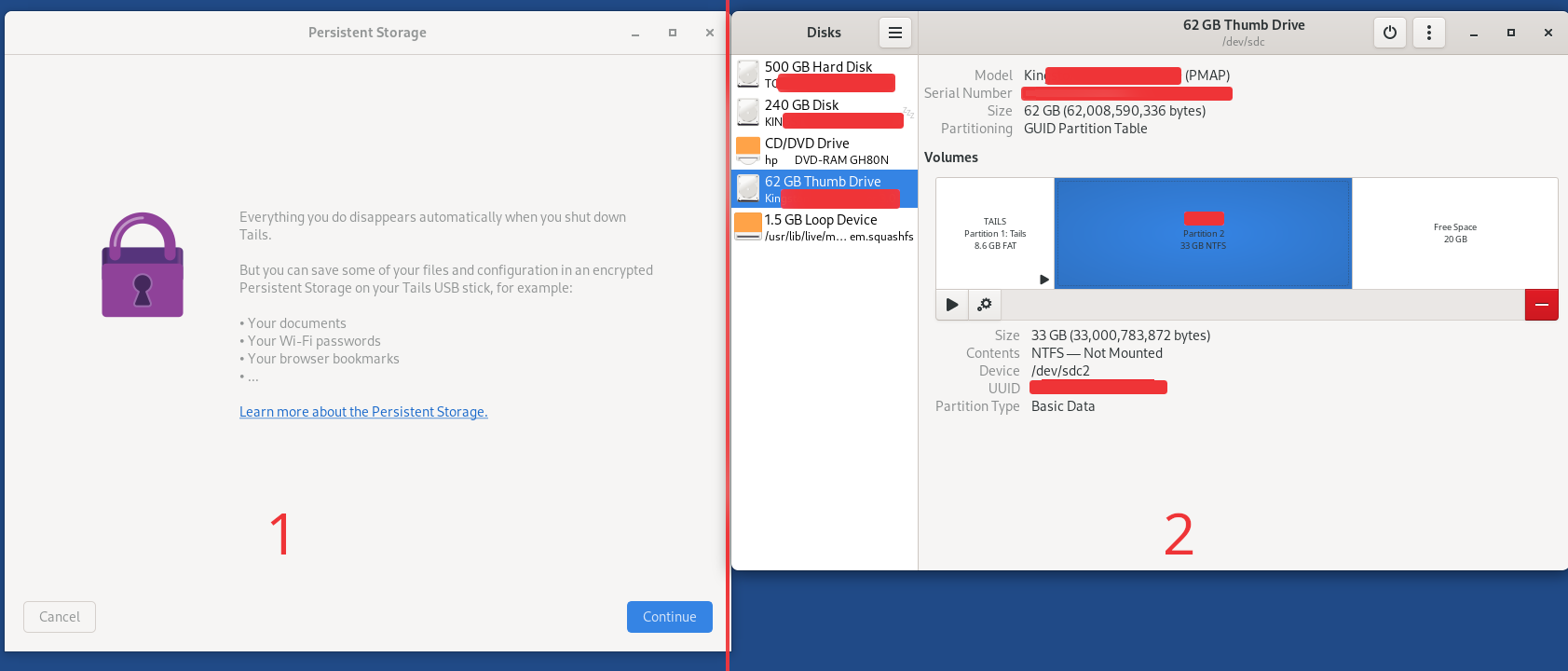
WARNING We don't procceed to the next stage of the creation of Persistent Storage because it will occupy the whole Free Disk space (Usb free space on this situation)"
Since we didn't press Continue to go the next page, we open the Disks by clicking Apps > Utilities > Disks (Applications > Utilities > Disks στο Tails 6) to open next to Persistent Storage window the Disk Utility with which we can see and manage the Disks - USB Sticks as it seems on the right (2) side of the above picture.
Then we find our USB Stick and after selecting with mouse on free space that will say Free Space the sign on the bottom row will change from square (▪) to cross (+). At that point we choose how much space we want to give to the shared Partition (the only partition will be shown on other Operating Systems) and how much space will remain available for amnesia's encrypted space of Persistent Folder and to Tails OS. We choose how much space will have the Shared Partition by either dragging the cursor with mouse, or by typing the number of GB. From below we must choose what format will have the Windows Partition having as default the NTFS something that is not necessary because we can choose FAT that also supported from all the other Operating Systems.
NOTE Here i must mention that the FAT format is says is actually the ExFAT format that is the only between these two formats that are compatible with Mac, ios and android smartphones out of the box (Smartphones can't read the contents of a usb stick with ntfs format that is the default format of windows). So, if your usb has dual connectors for smartphones or you want to use it with smartphones with an adapter you have to choose the FAT, that is ExFAT which is not compatible with Windows XP and Windows 7. Recapulating, while NTFS is compatible with Windows XP and newer it is not compatible out of the box with any current Operating System for Computers or smartphones.
These are essentially their differences since they do not differ on speed NTFS & ExFAT and the ExFAT has not the 2gb maximum file size of FAT and this is the reason it is the default format as Fat on creation of Fat Partitions from the Windows 8 era and later.
So, since we have chosen the desirable Format and a name as Label we press Next to create the Shared Partition.
After we are sure the Shared Partition created and there is not any procedure in progress we continue on the left side (1 on the image) by pressing the Continue and from here and on out the next stages are the same as they are on the official creation guide of amnesia's Persistent Storage on official site of [Tails OS]
As you show the creation of the Shared Partition on Tails OS to share easy with Windows, Mac or smartphones some files doesn't cancel the official procedure but it expands it and in my opinion it is more secure to have Shared Partition because we avoid to use a driver or accessing externally the Persistent Storage something that may ends up catastrophic for Tails OS or the usb stick even from a Linux PC that may be compromised. Also if we lost the usb stick and someone finds it and use it there is high propability the new owner thinks he has on his hands a common usb stick because of the Shared Partition :p.
How to connect with the safest way to Tor Network and how to manage Tor with NoTails.. Tails Menu
Because there may be users of Tor that want to know what is the safest way and without extra costs for the creation of their own Tor Circuits, i should write on this senction a guide about the [ hide to my local network that i am connecting to Tor ] option and how to solve the no connection to Tor problem when they choose this option because it is a problem that are facing almost all the times the Tails OS users when they choose the more secure way connection to Tor.
[Spoiler] Procedure for a more secure Tor connection and solving the problem of not connecting to Tor
If we want to connect to Tor real anonymous we must always have in mind that our Tor connection should look ... NORMAL!
So the [Hide to my local network that i am connecting to Tor] option alone as you see it on next picture [1] is not enough because if we add a bridge that its port already related to Tor ( [from cisa]) Monitor for use of TCP/UDP ports 9001,9030, 9040, 9050, 9051, 9150, and TCP ports 443* and 8443.) our network will be flagged easily as Tor.
Here we see that the 443 port has an asterisk and below the author confesses that it is wrong to flag 443 as Tor port because all sites the 443 port are using!
The answer to the question of a secure connection with tor is that our Tor connection should appear ... normal! But even using 443 port doesn't mean that our network activity cannot correlated with Tor according to packet analysis... Packet analysis of Tor activity was the reason i included the Wireshark, a top program of its kind that it will help you understand that even you who are on your computer cannot read what the data you are sending contains.
Having these in mind see and repeat the steps of the pictures from 1st until 4th picture. You can find at least one obs4 bridge from Torporject which offers for free a couple daily on this address. [Tor Bridges].
[1st] Image ![[1st] Image](/img/NoTails..Tails-images/1.png) [2nd] Image
[2nd] Image ![[2nd] Image](/img/NoTails..Tails-images/2.png) [3rd] Image
[3rd] Image ![[3rd] Image](/img/NoTails..Tails-images/3.png) [4th] Image
[4th] Image ![[5th] Image](/img/NoTails..Tails-images/4.png) During the secure connection process you will realize in time that almost always the connection fails at the begining (img.4) because the display time is taken from the bios whick is set to local time.
During the secure connection process you will realize in time that almost always the connection fails at the begining (img.4) because the display time is taken from the bios whick is set to local time.
Solving the problem of not connecting to the Tor NetWork
The solution to this problem is to change the time from Local time to UTC - Universal Time / GMT - Greenwitch Time / ETC - ZULU (all are the same time) by pressing the [ Fix Clock ] button as you see on the above 4th image. After that, we can change the time and decreasing or increasing it by pressing the dash (-) or cross (+) under the [ Time ] field X times if this moment is within summer period (21 March - 1 October) and X-1 times the rest period of the year. i.e. For Greece / Ellas it is -3 hours in the summer period and -2 hours in winter. Of course, if it affects the day we must change the day by redusing or increasing the day by one day and the hour by as many hours from 24 as there are remaining from 00:00 e.x for 01 am at night in Greece / Ellas we must set 22 the hour and decrease by 1 the day to connect to Tor network! The only problem you have now is to find how many hours is the X number ( the difference of your local hour from UTC/GMT hour aka ETC/ZULU hour ). For this problem i created the 8th script that informs the Local Time in various capital cities around the world and i think is a nice screen to have it open (i always have it open :p) .If you can't find your capital city open the script and add it inside "" and with spaces around the code name of your city inside the city_times array of the script. You can find the code name of your capital city from the /usr/share/zoneinfo directory in tails or any Linux distribution.
[Correction of hour on Tails]
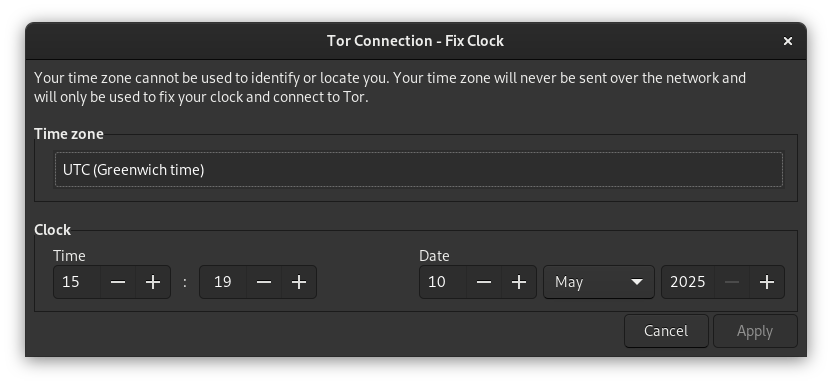
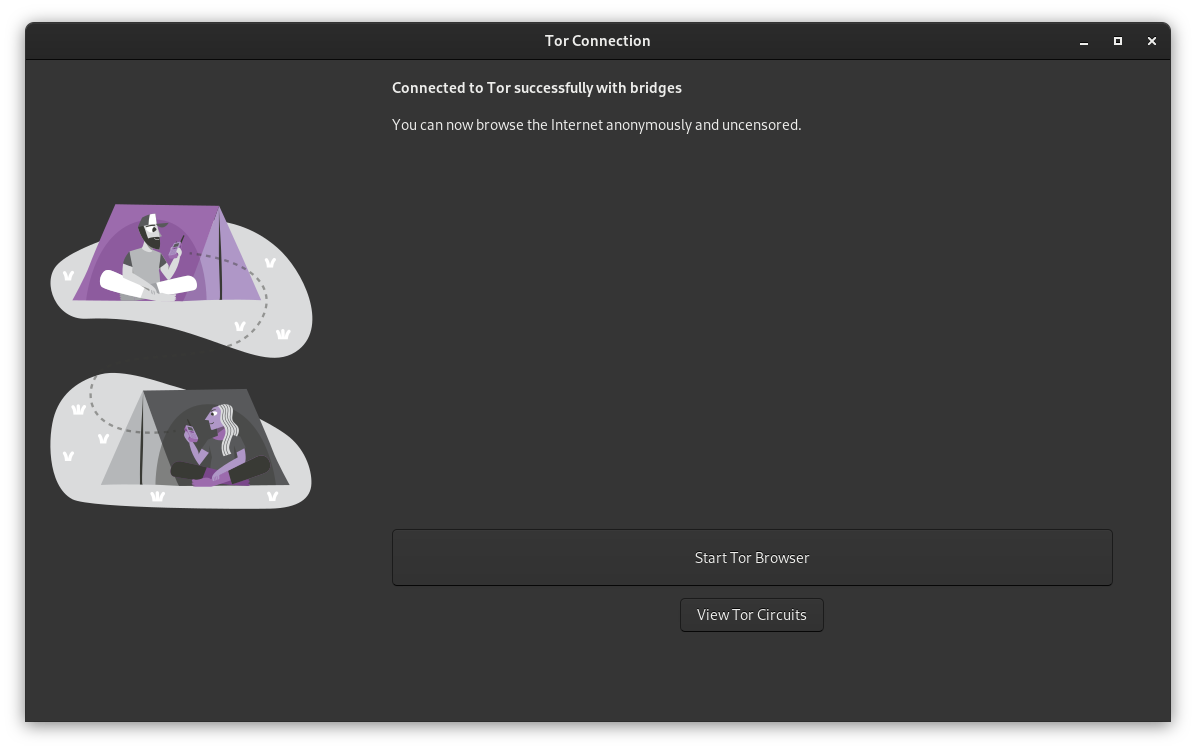
After we correct the time with the above actions, we should press the connect button to see if we can connect to Tor. Most of the times if there is not any other internet problem after the pressing of the connect button it informs us that we are connected with Tor with a window like this in the below image.
[Succefull Connection with Tor]
How to connect to Tor Network on Debian Linux to start using the ΝοTails..Tails Menu?
The procedure to connect to Tor Network with Debian Linux is easier and much more less time-consuming than Tails OS because in Tails OS every login is a fresh Start from the beginning and the reducing of time after login on Tails OS to come the Desktop in a state that i like and want was the main need and reason that pushed me to create this Tails OS zenity Script because i have a feeling that the Tor network, Tor Browser and all programs around them like Tails OS will be the internet of ... tomorrow.
So, in Linux only one command is enough to install and start using Tor and Tor Browser . Just add the word [ contrib ] to the lines that starts without # and after the [ main ] word inside the file /etc/apt/source.list that is responsible for our updates and upgrades in Debian Linux.
sudo apt install tor torbrowser-launcher obfs4proxy
After the execution of the above command you will find 2 programs inside the Internet category of Applications and you have only to run the [ Tor Browser Launching Settings ] to install the Tor Browser inside the profile of the user! Now Tor Browser is ready to run and if any message about apparmor appears on Tor Browser it is coming from Firefox that is based that has different default settings and it looks for global settings while the developer of [ Tor Browser Launching Settings ] has included the apparmor settings as .c files inside /etc/apparmor.d/ that work well. To test if the browser's apparmor profiles work just try to download something and try to save it outside of the "/home/${USER}/.local/share/torbrowser/tbb/x86_64/tor-browser/Browser" folder that is the path where the Tor Browser installed and you will find out that you can't (you can validate that it is enforced with the [sudo aa-status] command).. If you don't want the Tor network starts with your computer with the next command you disable it and ...
sudo systemctl disable tor
For better anon connection to Tor use instead of a obs4 Bridge a webtunnel connection, that is real dificult to be traced since it uses the 443 port and you can even use your own web server as a webtunnel Bridge. How to do it maybe is a feature article but if you search for connection with webtunnel bridge on Tor you'll find guides either from Tor Project, either from people that turned their web server to a webtunnel server.
Can non-Debian Linux user use the NoTails.. Tails Menu ?
The one-word answer is ... YES with one exception that they are not fully supported. All major Linux versions are compatible and they depend from their package manager that if it is dnf, apk, zypper or pacman will not appear any compatible zenity message. If you are using a different package manager you can add inside the NT_Functions.sh an extra elif with its command -v and it will not appear again the zenity compatible message. For example in the 2nd script Debian can be updated and upgraded, while on Tails only updated and on all other Linux Distributions will appear a message what the script is doing on Debian / Tails OS. The execution of any script including the main script on not compatible Linux Distributions will have as result a warning zenity message.
On the other hand the 5th,8th and the YWC downloader are not dependent from anything and they both run on any Linux Distribution without warning !
How to manage Tor with NoTails.. Tails Menu
We can manage the Tor service and network with NoTails.. Tails Menu with the 3rd command of the main script / 3rd script inside the folder with this script we total control and solve all the problems may arise. For example ...
If we want to stop Tor ...
(if we want to leave the computer with Tails open) just press the 2 key and enter on the 3rd script and you will see the onion icon of the connected Tor to go offline. With the 7 command of NoTails.. Tails Menu we will confirm that we are not connected with anyone. We restore the Tor connection with 1 or by pressing the onion icon again.
How to add or remove a bridge ...
On the 3rd script again we press the 3 key + enter to use the nano terminal editor to edit the torrc file. With nano we can add new bridges under the existent by pasting the whole string of bridge we took from https://bridges.torproject.org that should have the word Bridge in front of each line with bridges before the word obs4 to work in torrc file. We save our new settings with the [ control + x ] key combination. When the file is closed and saved we either press the 5 key + enter or the onion icon on upper side of Tails desktop to restart Tor with our new settings.
Debian Linux Users can manage Tor with the same way (if they have install it) with one exception. On Linux the reset command ( 4th command of 3rd script) is disabled because it is different on every Linux distribution and since it is catastrophic i don't want my script to involve on failures. The reset for Tails OS is a copy paste of the guide that the developers of Tails OS already published!
How to Contribute or Support the NoTails.. Tails Menu project
If you want to contribute or support the NoTails.. Tails Menu you can do it with many and inexpensive ways.
- Fork NoTails.. Tails Menu on github, gitlab, bitbucket, gitea or any other project management repository to keep it alive.
- Write for NoTails.. Tails Menu to your preferred social communication sites so other Tails or Tor Linux users learn about it and maybe can create a similar project for their own Linux distribution that i couldn't do for them (arch, apk, kde konsole etc) or just bring your useful script for Tails. The prosthesis of another one functionality or script in menu is literally only one extra line in case for a compatible terminal !!!
- Do to not comply to anything they want. Do not have ... amnesia (αμνησία), with the No's we remained free in the past. King Leonidas only said No to King Xerxes ;)
Now, if it's Okay and you want to treat me a frozen ice cream in the summer or a hot coffee in the winter, this is one of my real Crypto Accounts that someone can create even offline, since only this Crypto created to be real anonymous with the implementation of Cryptonote 2 protocol (πρωτόκολλο) and 100% compatible with Tails OS and the Tor Network aka the ... Crypto (εν κρυπτώ ;)) Web.
RebelStreamers XMR
8AHgwahLdBGBiECtMcLfVXQxYyxrRvQUGdrsxXD261k2JkU3NgVcpX8JCzWxuMpWuiM54T1hHtiGAQebo7o7xvLg5ViK9Sq
Well and above all ... Safe and Secure Crypto (εν κρυπτώ) Web Surfing, Always!
License to use
The License to use the NoTails.. Tails Menu is the AGPLv3 and you can find a copy inside the zip file or read it online : AGPLv3 License
[Spoiler] P.S. If you deal the technical issues as a fan, please do not continue reading by expanding the spoiler ...
Question: Why i mention on this article the Windows XP and not the modern Windows 11?
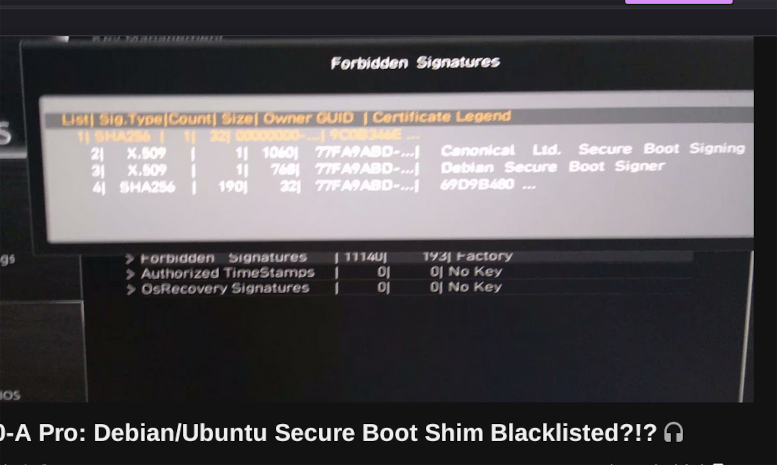
Answer: Because after Windows XP no new technology or feature was created for Windows User Desktops apart from the change of appearance and all system programs became ... apps (browser applications always connected to the internet). From the control panel to even games, everything became browser applications that will need network authentication to ... start in the future but unfortunately this is something that already happened. For example see the printscreen from a 2021's video (yt code: w8r-U2C7UMs ) in which a motherboard blocked the local keys in uefi from Ubuntu and Debian. The forbidden keys in settings were stored from the ... Factory as you can see in the image. Something that anticipates the dangers of the evolution we are already living now!
[blocked Ubuntu & Debian UEFI keys in a 2021's motherboard]
The only thing that really changed in Windows Vista, 7, 10 and 11 is the appearance from the Windows XP era and the creation of exFAT filesystem. All the new features and new technologies presented were based on ... driver or the integration of existing technologies into kernel just like it is happening on Linux and Mac, with a small difference in Linux, older hardware is not abandoned as obsolete if it is powerful as it happened in Windows 11 with the 4 cores i7 CPU of the previous decade, in one of them i am writing this article, i am playing my games and i am developing my programs in various Virtual Machines.
If i am not mistaken the Windows 10 offered as a FREE UPGRADE to ALL Windows 7 including the pirated and if you didn't know until today the online accounts that is prerequisite today for Windows 10 users to continue having updated Windows is actually a faithful copy of the roaming feature of Active Directory since the ... Windows XP and Windows Server 2003 era where the settings and the files of the Organization's users were kept on Organization's Servers and Disks. For this reason i mentioned Windows XP as a reference point on this article. With online Accounts your settings and files of your ... profile on Windows 10 & 11 are stored in the cloud, that is, on someone's else Computer - Servers, with whatever that means!
If you are interested to listen one more opinion from a developer and maybe a more expert's developer opinion this time on why you should start using Tails OS and Linux and avoid using online accounts for your Daily Private Tasks i found maybe the best and most recent video on this subject (only 2 months old video). Enjoy it
For all these reasons, use free and open source code Operating System like the Linux is and protect your privacy even more with Tails OS. You can do on Linux everything you are doing to the rest OSes without anyone forcing you to use online accounts to have updated OS or to run commercial dedicated to Windows programs. But even on this situation these Windows commercial programs may run on Linux with emulation (Wine, dkvx, proton etc) or as they are inside a Windows Virtual Machine (kvm, qemu, promox, virtualbox etc) on a ... Linux Host (Your current PC) as you can watch on the next video from the same dev.
Now if the ... bigest problem is how to share your files between the Linux Host and the Windows Virtual Machines the easiest way is with the Tails USB that has a shared Windows Partition on it as you already read before on this article, but if you need a more permanent way i have already create in the past during 2023 2 articles in my other site which you can read here, how to share files between the Linux Host and the Windows Guest and here, how to share files between the Linux Host and the Linux Guest.
Finally, I must draw your attention that if you use TAILS OS USB AT THE SAME TIME with your linked online accounts from any source and it is this (e.g. your official email, the connected accounts with your official online games and of course the TPM2 of ... your job) that is the worst you can do because you destroy the anonimity the TAILS OS USB is offering. You need to separate them somehow either online (with different internet sources that are ideal but more costly), or ... chronically (with ip renewal after rebooting your router but maybe not so effective anymore)